
How to clone
1
Find the ID of the rule you want to copy
Every rule has a numeric ID. See finding a rule ID below.
2
Start a new rule
Go to Shipping Rates and click Add Rule.
3
Open the clone dialog
Use the Clone action on the new rule page and enter the ID of the rule you want to copy.
4
Adjust and save
The form is populated with the source rule’s conditions and rates. Change what you need, then set a name and a priority of its own and save.
Finding a rule ID
The rule ID is not shown on the rules list by default. Instead it’s seen in the browser address bar.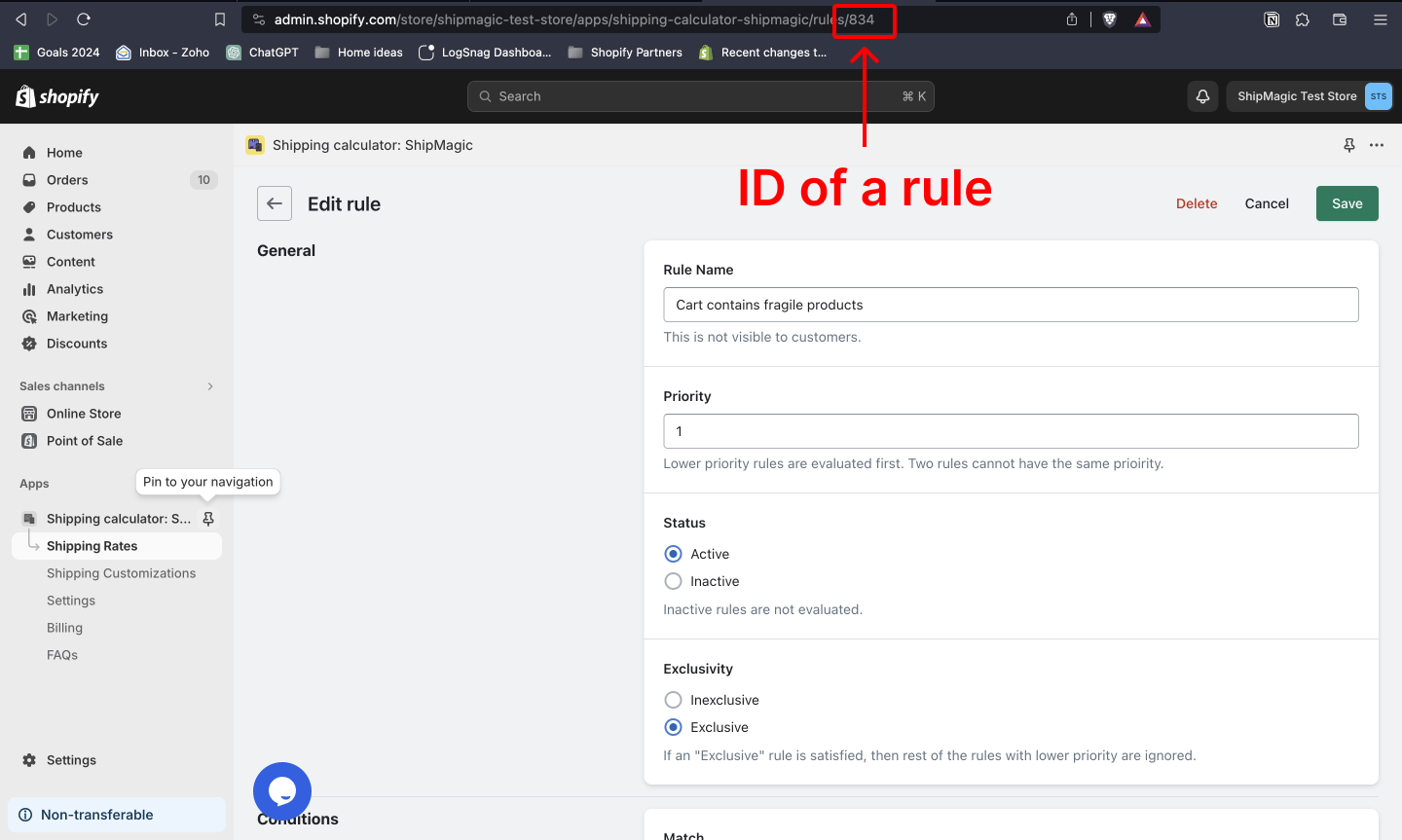
What gets copied
Cloning brings across the parts of a rule that are laborious to recreate — its conditions and the rates attached to each zone. You still set the new rule’s own identity: its name, its priority, and its status.To copy an entire setup between two stores, use Cloning Full Setup from One Store to Another.
Related
Clone between stores
Move a whole configuration to another store.
Basic shipping rate
Rule fields, priority, and exclusivity.
Ranged Rates
The multi-band rates that benefit most from cloning.
Structuring rules
Keeping a growing rule set manageable.