> ## Documentation Index
> Fetch the complete documentation index at: https://shipmagic-docs.speedysquirrelhq.com/llms.txt
> Use this file to discover all available pages before exploring further.
# Installation Guide
> Follow the steps below to install and connect ShipMagic with your Shopify store.
Install ShipMagic from [Shopify App Store](https://apps.shopify.com/shipping-calculator-shipmagic?referrer=mintlify-installation-guide).
Navigate to Settings → Shipping and Delivery → General Profile.
If ShipMagic appears as a shipping rate provider in your zones, the app is set up and connected correctly.
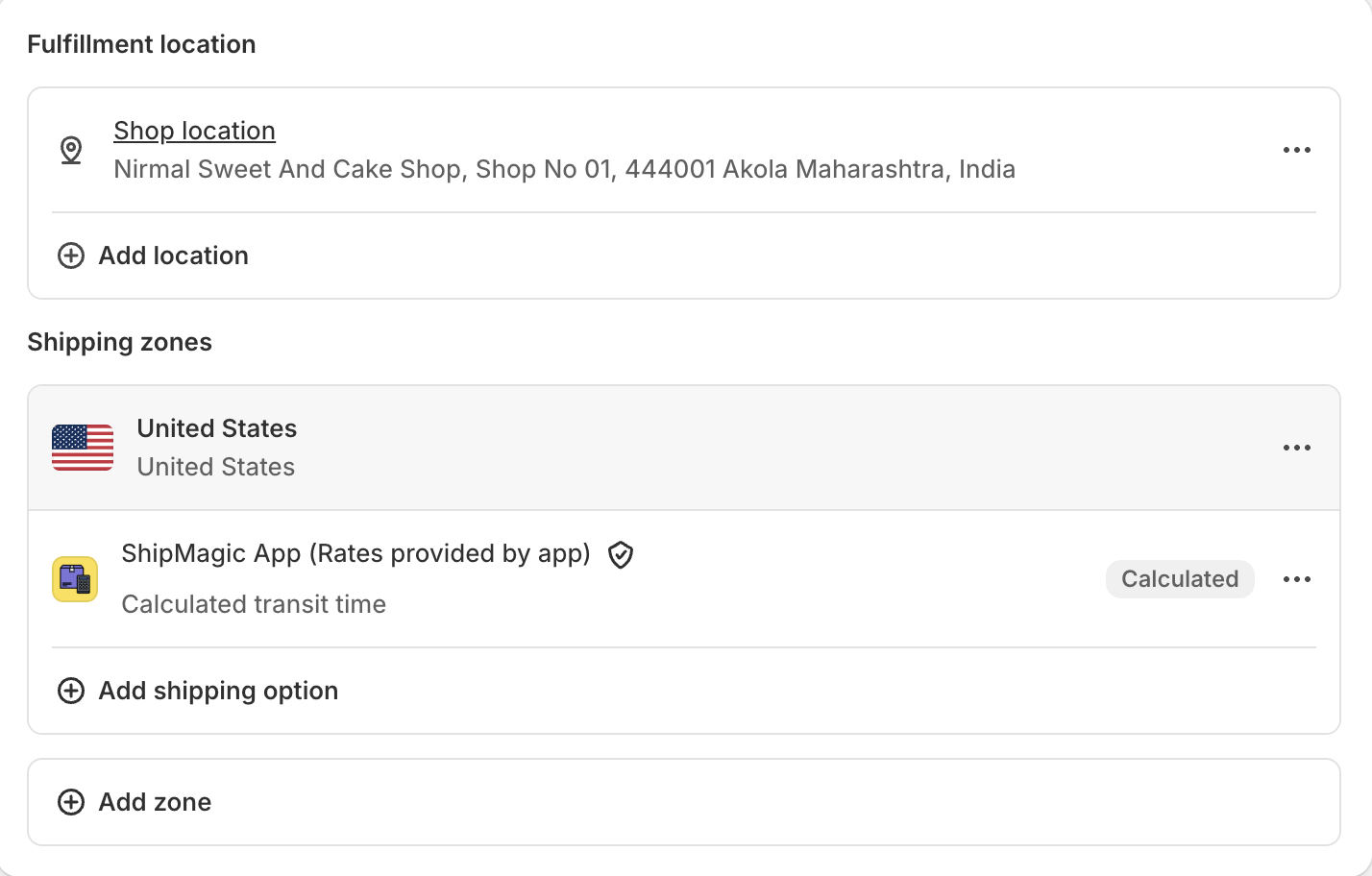 If you don’t see ShipMagic App listed in your shipping zones, check the following:
#### 1. Verify you are checking in the General Shipping Profile
* By default, ShipMagic connects to the General shipping profile.
* If you’re using a custom profile, you’ll need to connect the app manually. Follow the setup steps [here](#add-shipmagic-as-a-rate-provider-custom-profiles-&-zones) in order to to do.
#### 2. Ensure CCS is enabled on your store
* Carrier Calculated Shipping (CCS) is a [Shopify feature](https://help.shopify.com/en/manual/fulfillment/setup/shipping-rates/third-party-carrier-calculated-shipping) that allows third-party apps like ShipMagic to display shipping rates at checkout.
* This is mandatory and is required for all third party shipping rate apps.
* You can contact [Shopify customer support](https://help.shopify.com/en#/contact) in order to enable CCS for your store.
Tip: If you're unsure whether CCS is enabled, go to the Shipping Rates page in the app.
If CCS is not enabled, you’ll see an error message. If no error is shown, CCS is active on your store.
Shipping Customizations are installed automatically and do not require any manual verification.
They are enabled by default and work seamlessly across all stores.
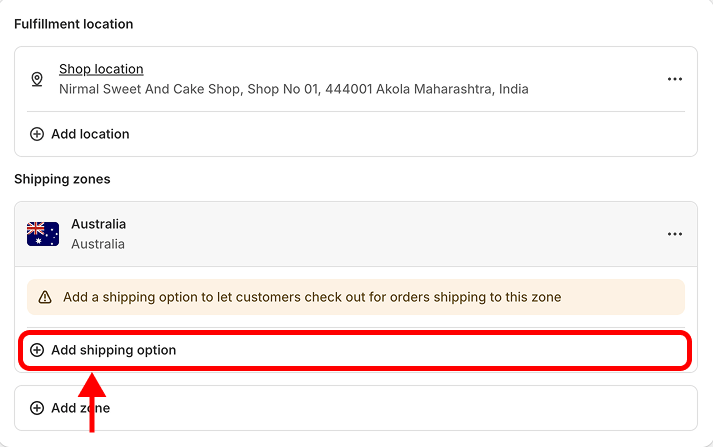
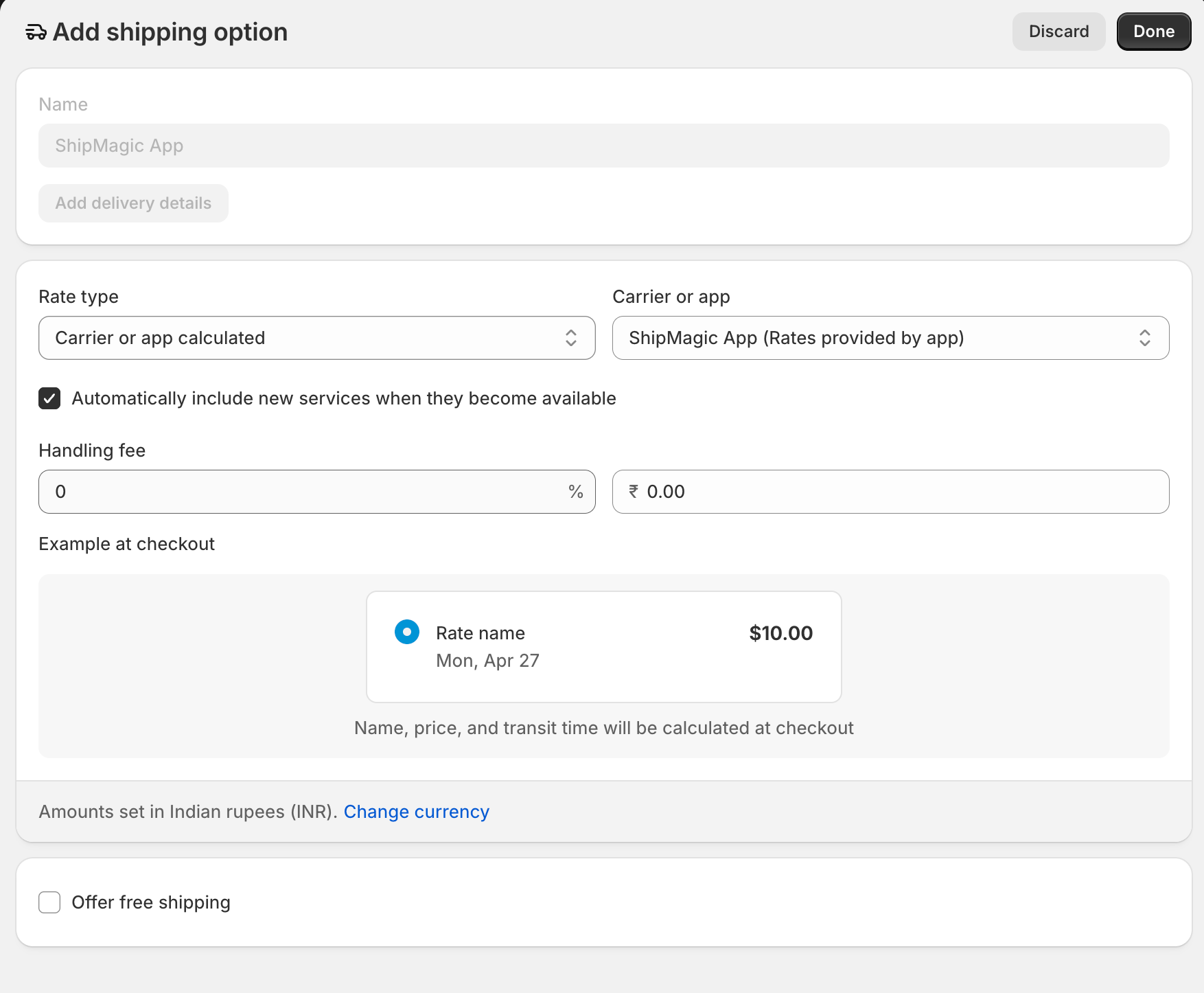
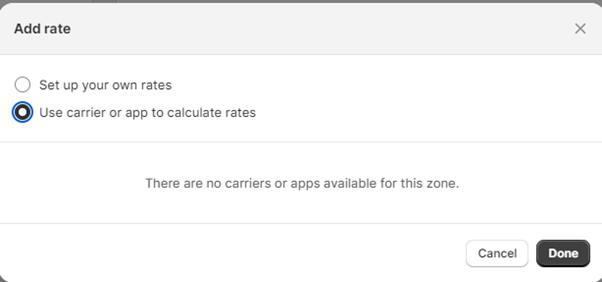
## Add ShipMagic as a Rate Provider (Custom Profiles & Zones)
You need to have [CCS enabled](#2-ensure-ccs-is-enabled-on-your-store) on your store to perform this operation.
If you don’t see ShipMagic App listed in your shipping zones, check the following:
#### 1. Verify you are checking in the General Shipping Profile
* By default, ShipMagic connects to the General shipping profile.
* If you’re using a custom profile, you’ll need to connect the app manually. Follow the setup steps [here](#add-shipmagic-as-a-rate-provider-custom-profiles-&-zones) in order to to do.
#### 2. Ensure CCS is enabled on your store
* Carrier Calculated Shipping (CCS) is a [Shopify feature](https://help.shopify.com/en/manual/fulfillment/setup/shipping-rates/third-party-carrier-calculated-shipping) that allows third-party apps like ShipMagic to display shipping rates at checkout.
* This is mandatory and is required for all third party shipping rate apps.
* You can contact [Shopify customer support](https://help.shopify.com/en#/contact) in order to enable CCS for your store.
Tip: If you're unsure whether CCS is enabled, go to the Shipping Rates page in the app.
If CCS is not enabled, you’ll see an error message. If no error is shown, CCS is active on your store.
Shipping Customizations are installed automatically and do not require any manual verification.
They are enabled by default and work seamlessly across all stores.
## Add ShipMagic as a Rate Provider (Custom Profiles & Zones)
You need to have [CCS enabled](#2-ensure-ccs-is-enabled-on-your-store) on your store to perform this operation.